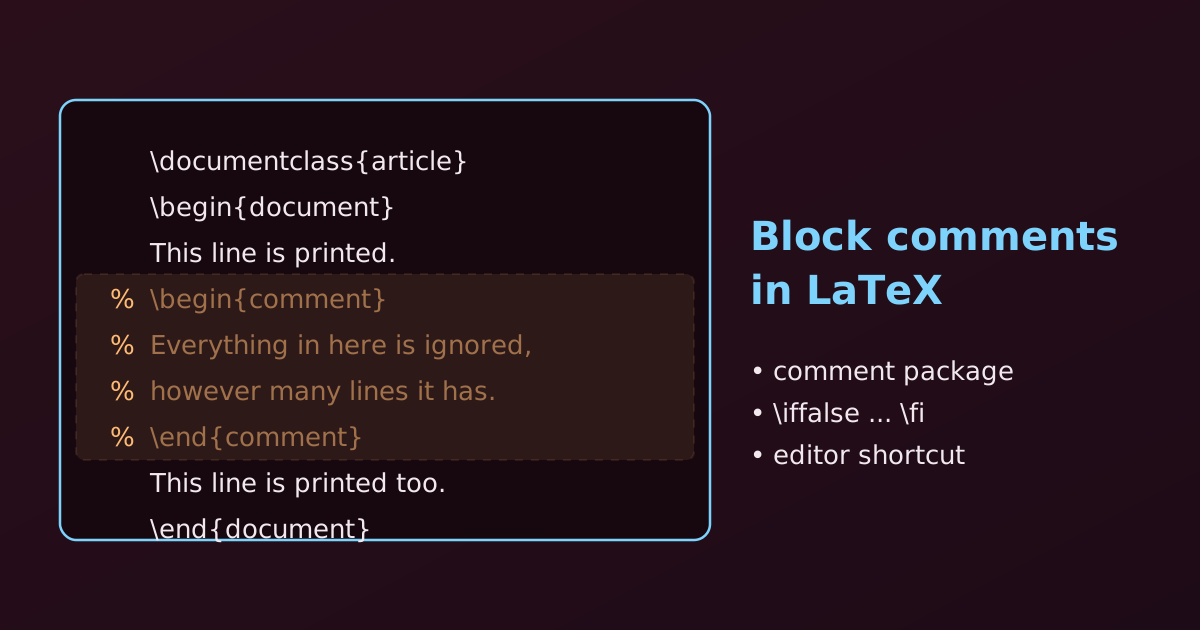
Plain LaTeX has only one kind of comment: everything after a % to the end of the line is ignored. To hide a whole paragraph, table or block of code, we have three options. Let’s look at each, and at when it can go wrong.
1. The Fastest Way: an Editor Shortcut
Select the block and press the editor’s comment shortcut. The editor puts a % in front of every selected line for us.
| Editor | Windows / Linux | macOS |
|---|---|---|
| Overleaf, TeXstudio, VS Code, Texmaker | Ctrl + / |
Cmd + / |
The same shortcut removes the percent signs again. (Some editors use other keys: older TeXstudio versions use Ctrl + T to comment and Ctrl + U to uncomment. Check the editor’s menu if the shortcut does not work.)
This is the safest method, because the hidden lines are real comments. The cost is that the source now has a % on every line.
2. The Cleanest Way: the comment Package
The comment package gives us an environment that ignores everything inside it.
- Load the package in the preamble:
\usepackage{comment}. - Wrap the block in
\begin{comment}and\end{comment}.
\documentclass{article}
\usepackage{comment} % required in the preamble

\begin{document}

This text will be visible in the compiled PDF.

\begin{comment}
Everything written in this environment is completely ignored.
You can write several paragraphs, tables or code
without adding percent signs.
\end{comment}

This text will also be visible.

\end{document}
The PDF contains the first and the last paragraph only.
The verbatim package also defines a comment environment, so \usepackage{verbatim} works in the same way. Some LaTeX installations load it already.
\end{comment} must be on a line of its own, with nothing else before or after it on that line.
3. The Package-Free Trick: \iffalse and \fi
Without any package, we can use a TeX conditional that is always false. TeX skips everything between \iffalse and \fi.
This text will print normally.

\iffalse
This is a multi-line comment.
LaTeX skips this whole section because the condition is false.
Change \iffalse to \iftrue to switch the block back on.
\fi

This text will also print normally.
This is handy for blocks we may want to bring back, since changing one word turns the block on again.
TeX still reads the skipped text to find the matching \fi. If the hidden block contains its own conditional, such as \ifnum or \ifx, then it must also contain the matching \fi. Otherwise LaTeX stops with “Incomplete \iffalse; all text was ignored”. Unknown commands and unmatched braces inside the block are fine.
A Switch for Draft Notes
The same idea gives a named switch, which is useful for notes that should appear only in a draft:
\newif\ifdraft
\draftfalse   % change to \drafttrue to show the draft notes

\ifdraft
Note to self: check this section before submitting.
\fi
Which Method Should We Use?
| Method | Needs a package? | Best for |
|---|---|---|
| Editor shortcut | No | Quick debugging and ad-hoc hiding of lines |
comment environment |
Yes (comment or verbatim) |
Clean, readable blocks and large sections |
\iffalse … \fi |
No | Package-free fixes and blocks we may switch back on |
In short: use the shortcut for quick edits, the comment environment for large blocks we want to keep tidy, and \iffalse when we cannot add a package.