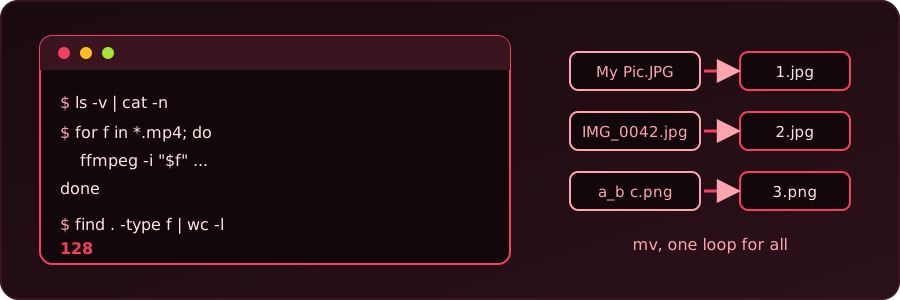
These are small commands we keep coming back to. Each one was run in Bash before we wrote it down here, and the outputs are real.
Bulk renaming and in-place editing change files for good. Try each command in a scratch folder first, or on a copy.
Where are we?
pwdpwd prints the current working directory.
Open a file with its default application
xdg-open filenamexdg-open uses the application the desktop has chosen for that file type, so a PDF opens in the PDF viewer and a folder opens in the file manager.
Look inside protected system folders
sudo nautilus # or dolphin, thunarThis opens the file manager with administrator rights. Use it only to look. Anything we create or change this way can end up owned by root, and then our normal user cannot edit it. Close it when we are done.
Clean up text with sed
We will use a small file in which blank lines separate the lines:
printf 'a\n\nb\n\n\nc\n' > file.txtRemove blank lines
sed '/^$/d' file.txta
b
cAdd a hyphen before each line
sed 's/^/-/' file.txt-a
-
-b
-
-
-cBlank lines get a hyphen too. To skip them, run the blank-line removal first, or use sed '/./s/^/-/' file.txt.
Put a blank line after every line
sed -i 's/$/\n/' file.txtWith GNU sed (the one on most Linux systems), this turns every newline into a double newline. The -i option edits the file in place. To keep a backup, write -i.bak instead. We get the original as file.txt.bak.
Count files
find . -type f | wc -lfind lists every regular file below the current folder, including subfolders, and wc -l counts the lines. In a test folder with two files and one more inside a subfolder, it printed 3. To count only the files directly in the folder, limit the depth:
find . -maxdepth 1 -type f | wc -lThat printed 2 for the same folder.
Rename many files
Number files in order
ls -v | cat -n | while read n f; do mv -n "$f" "$n.jpg"; doneHere ls -v sorts names in natural order (z2 before z10), cat -n puts a number in front of each name, and the loop renames each file to that number. The example renames everything to .jpg, so change the extension to suit. The -n option stops mv from overwriting an existing file.
On six files (a.jpg, b.jpg, c.jpg, my pic.jpg, z2.jpg, z10.jpg) this gave 1.jpg to 6.jpg, and the name with a space worked too.
Number files from a chosen start, with the same extension
num=0; for i in *; do mv "$i" "$(printf '%04d' $num).${i##*.}"; ((num++)); doneThis pads the number to four digits and keeps each file’s own extension. Set num=10 to start at 10. Three files named a.jpg, b.jpg and c.jpg became 0010.jpg, 0011.jpg and 0012.jpg.
We use ${i##*.} (the part after the last dot), so a name such as my.photo.jpg keeps jpg. The * also matches folders, so run this where only the files to rename are present.
For a longer discussion of the numbering approach, see this Stack Overflow answer.
Replace underscores with hyphens
for f in *_*; do mv -- "$f" "${f//_/-}"; done${f//_/-} replaces every _ in the name. Starting from Report_Final_v2.TXT, we got Report-Final-v2.TXT.
Replace spaces with hyphens
for file in *' '*; do mv -- "$file" "${file// /-}"; doneMy Photo One.JPG became My-Photo-One.JPG.
Rename to lowercase
for f in *; do mv -n -- "$f" "${f,,}"; done${f,,} lowercases the name. Together, the three steps above turned My Photo One.JPG into my-photo-one.jpg and Report_Final_v2.TXT into report-final-v2.txt.
The same with Perl rename
Many systems also have a rename command that takes a Perl expression (on Debian and Ubuntu, sudo apt install rename). These forms do the same jobs:
rename 's/_/-/g' *         # underscores to hyphens
rename 'y/A-Z/a-z/' *      # to lowercase
We did not have this rename installed here, so we only tested the expressions themselves in Perl. My_File_Name_v2.JPG became My-File-Name-v2.JPG with s/_/-/g, and My_File.JPG became my_file.jpg with y/A-Z/a-z/. Note the g: without it, only the first underscore changes (a_b_c became a-b_c).
Convert all mp4 files to mp3
for f in *.mp4; do
  ffmpeg -i "$f" -b:a 192K -vn "${f%.mp4}.mp3"
done
-vn drops the video, -b:a 192K sets the audio bitrate, and ${f%.mp4} removes the .mp4 ending from the name. Because "$f" is in quotes, names with spaces work. A test folder with clip one.mp4 and second.mp4 ended up with clip one.mp3 and second.mp3 next to them.
An older version of this script looped over ls . | grep .mp4 and changed IFS. That breaks on names with spaces and also matches any name with “mp4” inside it. A plain for f in *.mp4 loop avoids both problems.