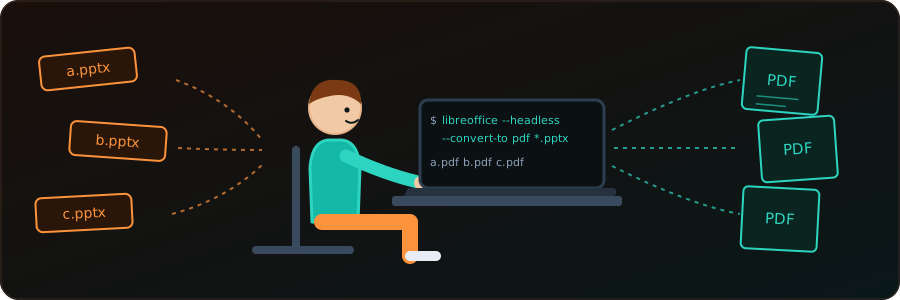
Opening each presentation and choosing Export as PDF is fine for one file and painful for fifty. The terminal can do it for us. The simplest tool is LibreOffice running without a window; the rest of this post covers a few alternatives.
LibreOffice (Linux, macOS, Windows)
LibreOffice is installed on many Linux distributions already, and its --headless mode converts files without opening the GUI.
Convert a single file:
libreoffice --headless --convert-to pdf presentation.pptxConvert every .pptx in the current folder:
libreoffice --headless --convert-to pdf *.pptxThe PDFs are written to the current directory. To put them somewhere else, add --outdir:
libreoffice --headless --convert-to pdf --outdir pdf/ *.pptxOld .ppt files work the same way; use *.ppt instead.
A whole folder tree
The glob *.pptx only sees one folder. To convert files in sub-folders too, let find feed them in, keeping each PDF next to its source:
find . -type f \( -iname '*.pptx' -o -iname '*.ppt' \) -print0 |
  while IFS= read -r -d '' f; do
    libreoffice --headless --convert-to pdf --outdir "$(dirname "$f")" "$f"
  done
-print0 with read -d '' keeps file names that contain spaces intact.
If LibreOffice is already open in the GUI, a headless run may do nothing. Close the window first. On macOS the executable is usually /Applications/LibreOffice.app/Contents/MacOS/soffice, and on Linux soffice is the same program as libreoffice.
unoconv (Linux)
unoconv is a command-line wrapper around LibreOffice.
sudo apt-get install unoconv
unoconv -f pdf presentation.ppt
It needs LibreOffice installed too, so for a plain conversion the direct command above is simpler.
Win2PDF (Windows)
On Windows with Win2PDF Pro, the win2pdfd.exe utility converts from the command line:
win2pdfd.exe ppt2pdf "source.ppt" "dest.pdf"
win2pdfd.exe pptx2pdf "source.pptx" "dest.pdf"
This is a commercial product; see the Win2PDF documentation for the details.
ONLYOFFICE Document Builder
Unlike LibreOffice, ONLYOFFICE has no single conversion flag. Its Document Builder (Windows, Linux, macOS) runs a small JavaScript file. Save this as convert.js:
builder.OpenFile("presentation.pptx");
builder.SaveFile("pdf", "presentation.pdf");
builder.CloseFile();
and run it:
documentbuilder convert.js      # Linux and macOS
docbuilder.exe convert.js       # Windows
There is no built-in recursive mode. To convert a folder tree, wrap the call in a Bash or PowerShell loop that generates the script (or passes the paths) for each file. If we run a self-hosted ONLYOFFICE Document Server, its Conversion API can do the same job through an HTTP POST with curl.
Which one to use
| Need | Tool |
|---|---|
| One file or one folder | libreoffice --headless --convert-to pdf |
| Many folders | the find loop above |
| Windows with Win2PDF Pro | win2pdfd.exe |
| Already using ONLYOFFICE | Document Builder or the Conversion API |
For most of us, headless LibreOffice is enough: one command, no scripting. Check a converted PDF or two, since fonts missing on the machine are replaced and can change the layout.