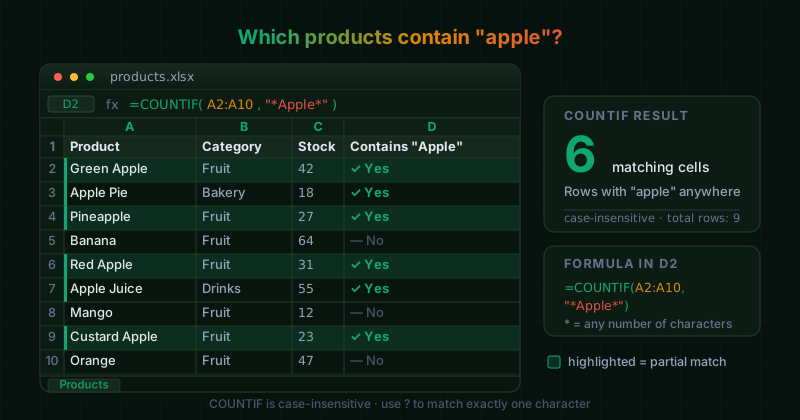
Sometimes we need to count cells that contain only part of a text, such as every product with “Apple” in its name. An exact COUNTIF can’t do that, but wildcards can. To count cells that contain a substring anywhere inside them, we put the asterisk (*) on both sides of the search text:
=COUNTIF(range, "*substring*")For example, this formula counts every cell in A2:A10 that has “Apple” anywhere in its text (case-insensitive), so “Green Apple”, “Pineapple” and “Apple Pie” all count:
=COUNTIF(A2:A10, "*Apple*")Using a Cell Reference as the Search Term
If the search text lives in another cell (say B2), we can’t just type *B2*, because Excel would treat that as literal characters. Instead, we concatenate the wildcards around the cell reference with the & operator:
=COUNTIF(A2:A10, "*" & B2 & "*")This builds the pattern "*Apple*" at runtime from whatever is in B2, so changing B2 updates the count instantly.
Other Wildcard Patterns
Two wildcards do all the work:
*matches any number of characters (including none)?matches exactly one character
Here is how we combine them:
Starts with a text:
=COUNTIF(A2:A10, "Apple*")Ends with a text:
=COUNTIF(A2:A10, "*Apple")One unknown character, e.g. matches “Jan” and “Jun”:
=COUNTIF(A2:A10, "J?n")The Same Three Patterns with a Reference Cell
Suppose the search term is in A3 and the data sits in F9:F100. The row is locked with $ so the range stays put when we drag the formula down.
Contains (anywhere):
=COUNTIF(F$9:F$100, "*" & A3 & "*")Starts with:
=COUNTIF(F$9:F$100, A3 & "*")Ends with:
=COUNTIF(F$9:F$100, "*" & A3)In Google Sheets an open-ended range such as F$9:F also works. Excel needs an explicit end row (or a whole column like F:F).
If A3 is blank, "*" & A3 & "*" becomes "**", which matches every text cell in the range. We can wrap the formula in an IF so it returns 0 when the criteria cell is empty:
=IF(A3="", 0, COUNTIF(F$9:F$100, "*" & A3 & "*"))Testing A3="" is safer than ISBLANK(A3), because it also catches cells that hold an empty string returned by another formula.
Searching for a Literal * or ?
Since * and ? are wildcards, searching for them as ordinary characters needs a tilde (~) in front. This counts cells containing a real question mark:
=COUNTIF(A2:A10, "*~?*")Quick Reference
COUNTIFis case-insensitive- Wildcards only match text; numbers stored as numbers are not counted by
"*5*" - Use
$to lock the range (F$9:F$100) when dragging the formula down - For several conditions at once, use
COUNTIFSwith the same wildcard logic