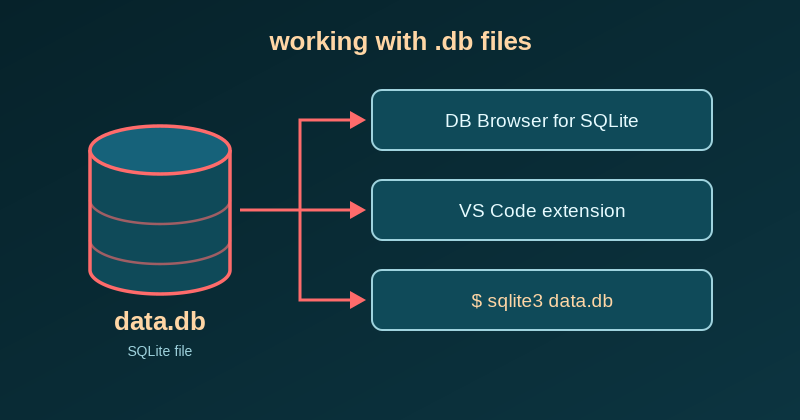
Most .db files are SQLite databases, so the easiest way to open one is with a dedicated viewer such as DB Browser for SQLite. But .db is a generic extension used by many programs, so the right method depends on what created the file.
First, check what the file is
On Linux and macOS, the file command tells us whether it is SQLite:
file yourfile.dbyourfile.db: SQLite 3.x database, last written using SQLite version 3037002, ...If it says SQLite 3.x database, everything below applies. If not (a Paradox database or an application cache, for example), open it with the program that created it.
Make a copy of the file before editing it. SQL commands such as UPDATE and DELETE change the data for good once saved.
Ways to open a .db file
1. DB Browser for SQLite (desktop)
DB Browser for SQLite is free for Windows, macOS and Linux. Click Open Database and pick the file. We can then browse tables, run SQL queries and edit records.
2. A browser-based viewer
Local, browser-based SQLite viewers are quick for read-only inspection. Check that the tool runs the file in our browser and does not upload it to a server, especially for private data.
3. Visual Studio Code
Install an SQLite extension from the Extensions marketplace. Then press Ctrl+Shift+P (Cmd+Shift+P on macOS), run SQLite: Open Database, and choose the file. The tables appear in the SQLite Explorer sidebar.
4. The command line
sqlite3 yourfile.dbInside the sqlite3 prompt, two commands help us look around:
.tables
.schema
.tables lists the tables and .schema shows how they were created. Type .quit to leave.
Editing data and running SQL
Let’s say the file has a table users created like this:
CREATE TABLE users (id INTEGER PRIMARY KEY, name TEXT, active INTEGER);with three rows:
| id | name | active |
|---|---|---|
| 1 | Asha | 0 |
| 2 | Ben | 1 |
| 3 | Chitra | 0 |
In DB Browser for SQLite (recommended)
Open the file with Open Database.
Edit visually. On the Browse Data tab, choose the table from the dropdown, double-click any cell to change it, or use New Record and Delete Record.
Run SQL. On the Execute SQL tab, type a statement and press the play button (or
F5/Ctrl+Enter):UPDATE users SET active = 1 WHERE id = 1; SELECT * FROM users WHERE active = 1;The
SELECTnow returns Asha and Ben:id name active 1 Asha 1 2 Ben 1 Save. Click Write Changes. Until we do, the edits are not stored in the file.
In VS Code
Right-click a table in the SQLite Explorer sidebar and choose New Query. A query editor opens, and we can write and run SQL against the database directly.
In the sqlite3 command line
Type SQL statements ending with a semicolon:
SELECT * FROM users;
INSERT INTO users (name, active) VALUES ('Dev', 1);
Changes made with SQL commands in sqlite3 are saved automatically when each statement finishes.
Exporting a table to CSV
To open a table in a spreadsheet, export it from sqlite3:
.headers on
.mode csv
.output users.csv
SELECT * FROM users;
.output stdout
The last line sends output back to the screen. The file users.csv can now be opened in any spreadsheet program.
Key takeaway
- Check the file type first:
file yourfile.db. - For clicking and editing, use DB Browser for SQLite; for scripting, use
sqlite3. - Keep a backup, and remember Write Changes in DB Browser.